| How to Run an Integrated POS Transaction - EMV |
The POS terminal is used to run payments, or transactions. |
|
|
|
| Step 1 |
After entering information into cashiering system, proceed to POS terminal |
| Step 2 |
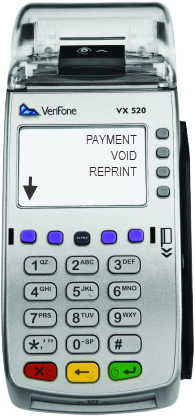
Select the Payment option by pressing the F1 button
|
| Step 3 |
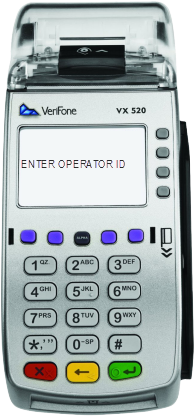
The POS Operator ID screen displays Enter Operator ID, the user enters the ID and presses the green enter button. Note - if the Operator ID was entered incorrectly or does not have the authority for the transaction, an error message will be displayed
|
| Step 4 |
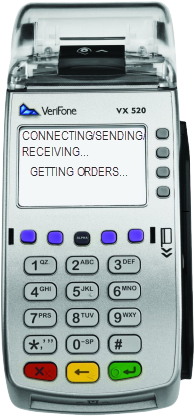
Connecting, Sending, Receiving then Getting Orders screen displays
|
| Step 5 |
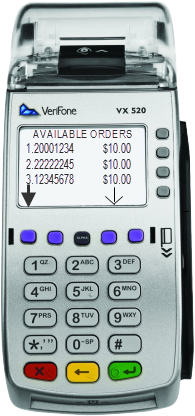
Available Orders screen displays with all available orders, select order by pressing corresponding number on the keypad or use the purple action key to scroll through the list of orders and press the green enter button when the correct order is highlighted. Note: If only one order is available the terminal will bypass this screen.
|
| Step 6 |
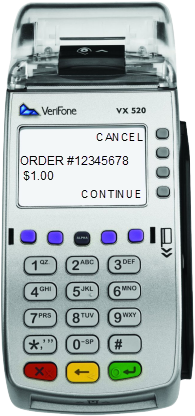
Selected order displays, press F4 to continue
|
| Step 7 |
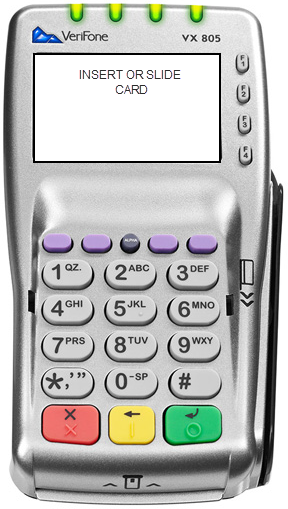
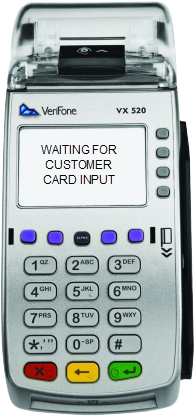
Insert or Slide Card displays on pin pad Customer inserts card into Pin Pad, terminal displays Waiting for Customer Card Input message
|
| Step 8 |
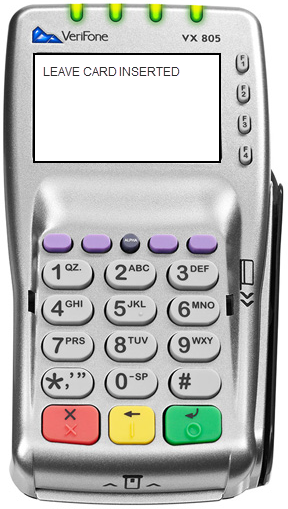
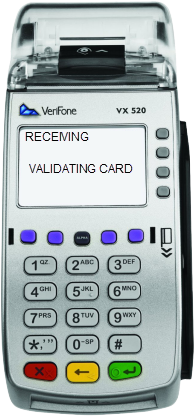
EMV Transaction -If the card has a chip (EMV) it must be inserted. Pin Pad displays Leave Card Inserted and then Remove Card. Terminal displays Receiving/Validating message.
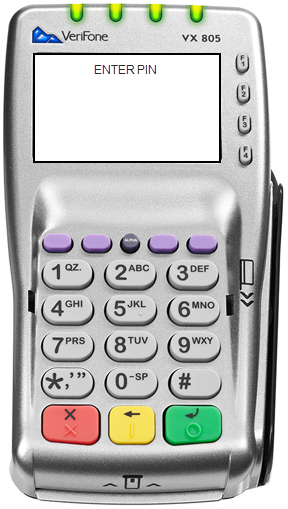
Debit - The pin pad prompts Enter Pin. Customer enters PIN and presses green enter key.
Credit - pin pad prompts for pin entry, press green enter key to bypass pin entry and proceed as Credit.
|
| Step 9 |
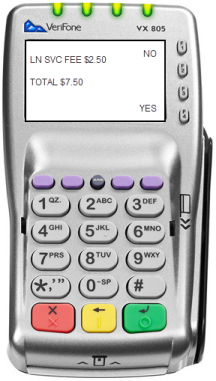
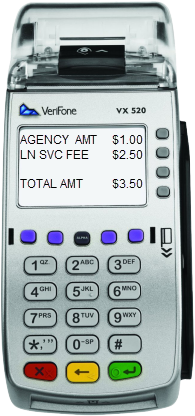
Payment fees display, customer selects F4 (Yes) to process, F1 (No) to cancel.
|
| Step 10 |
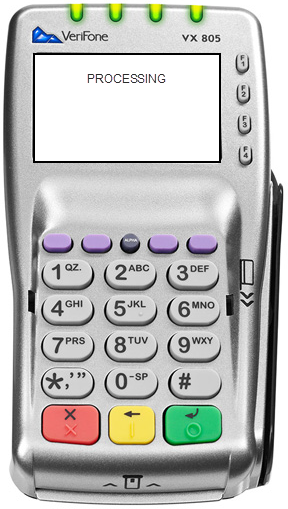
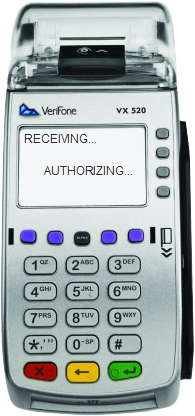
Authorizing/Processing message displays on both Terminal and Pin Pad
|
| Step 11 |
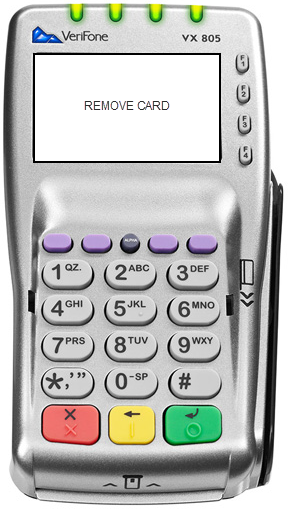
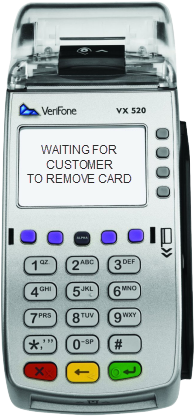
Pin pad will prompt Remove Card and beeps until card is removed, terminal displays Waiting for Customer to Remove Card.
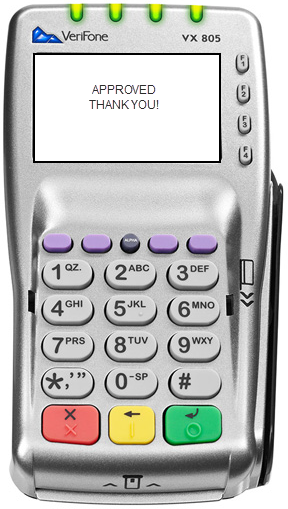
Once card is removed, approved message displays and Merchant Copy of the receipt automatically prints. |
| Step 12 |
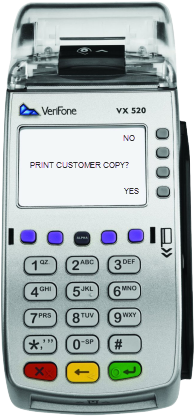
Terminal prompts Print Customer Copy? Select F4 for Yes to print and F1 for No.
Note - Printed on the receipt is the order number and the agency reference number, if entered in the cashiering system.
|
| Step 13 |
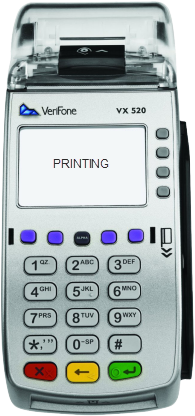
Printing message displays.
|