| How to Manually Close Orders with ACH |
Access from the Closeout menu. Opens to the Close Orders screen and contains tabs for Reprint Report, and Incomplete Close Users must have a role of Manager to be able to view and access Closeout functions Note - The Closeout process submits each agencies closeout to a queue. The length of time to complete a closeout may vary depending on the number of closeouts in the queue. |
|
|
|
|
Step 1 |
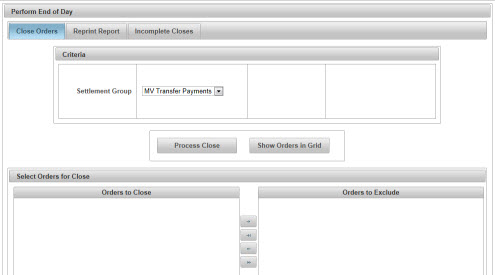
From the Closeout menu, select Perform End-of-Day. Close Orders tab is displayed
|
| Step 2 |
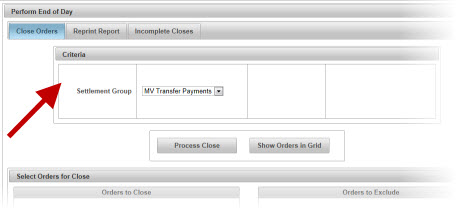
Select Criteria to close, or proceed to Step 3 to include all available criteria in the closeout
|
| Step 3 |
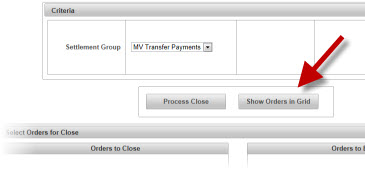
Click Show Orders in Grid button
|
| Step 4 |
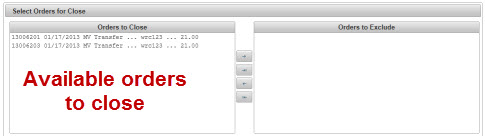
Available orders to close will display in Orders to Close table
Note - To exclude order(s) from the close:
Note - To move multiple orders - click & hold the Control button while clicking the orders to be moved; this will allow the user to select multiple orders at one time |
| Step 5 |
Click Process Close button
|
| Step 6 |
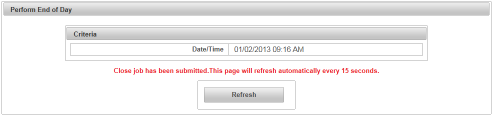
Close job report screen appears while close is processing
|
| Step 7 |
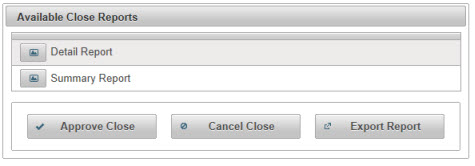
Available Close Reports screen appears when reports have been generated
Note - Click the Export Report button to export to an Excel file
|
| Step 8 |
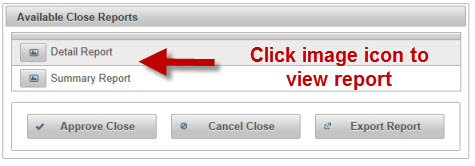
Click Report image icon to view report required
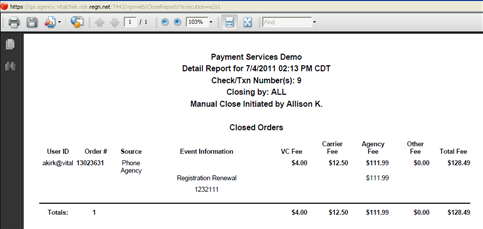
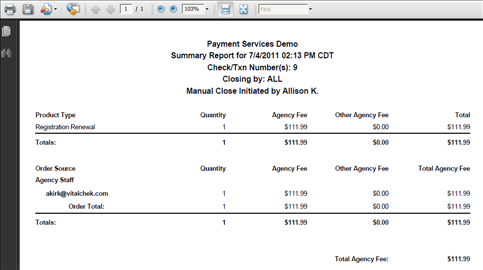
Selected report appears in a .pdf window. Reports can be printed by clicking the printer icon. Detail Report:
Summary Report:
|
| Step 9 |
Click Approve Close button to continue processing the close
|
| Step 10 |
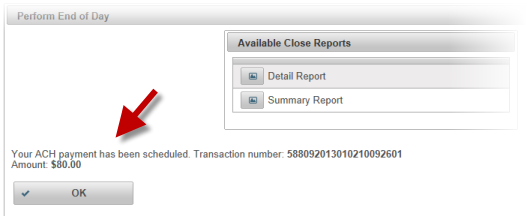
Close process is complete and payment confirmation displays
|
| Step 11 |
Click OK button to confirm close and return to Close Orders screen |
 (or click Exclude All button
  to exclude all orders from the close process). To move orders back and include in the close, click the Include button
  (or Include All button
  to include all orders in the close)